
1. Display Reviews Using Elementor #
ReviewScribe provides an Elementor widget that lets you add and customize your review showcase directly in the visual editor.
Step 1: Open Elementor #
- From your WordPress dashboard, go to Pages → All Pages.
- Select an existing page or create a new page.
- Click Edit with Elementor.
- Search for ReviewScribe Showcase in the Elementor widget panel.
Step 2: Add the ReviewScribe widget #
Drag the ReviewScribe Showcase widget into the section where you want your customer reviews to appear.
The review showcase will display reviews according to the selected layout and configuration.
Step 3: Choose a showcase type #
Under Content → Widget, select your preferred showcase type.
Available layouts include:
- Review Carousel: Display reviews in a sliding carousel.
- Review Grid: Arrange customer reviews in a structured grid.
- Video Carousel: Showcase video reviews in a carousel layout.
- Floating Badge: Display a floating review badge to highlight customer feedback.
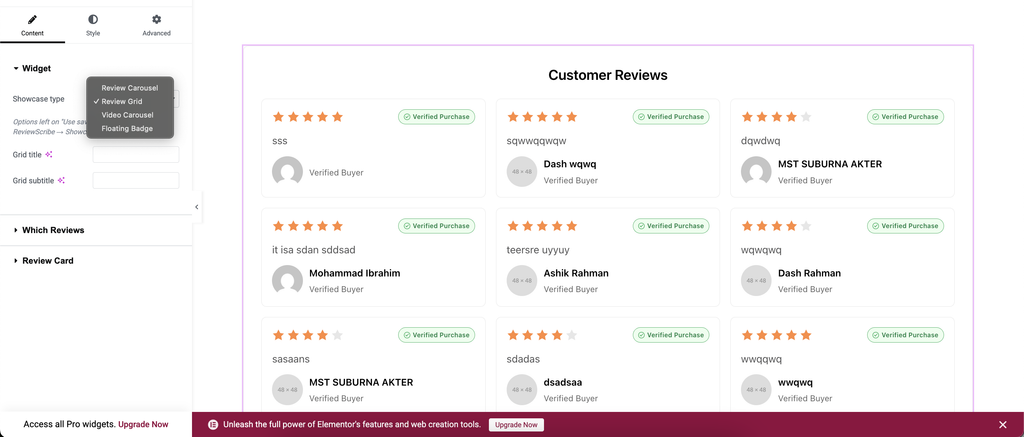
Choose the layout that best suits your page design and content.
Step 4: Customize the grid heading #
When using Review Grid, you can configure the heading fields:
- Grid Title: Add a heading, such as “Customer Reviews” or “What Our Customers Say.”
- Grid Subtitle: Add a short description to introduce your customer feedback.
For example:
Title: Customer Reviews
Subtitle: See what our customers are saying about their experience.
Leave these fields empty to use the default settings configured under ReviewScribe → Showcase Reviews, where applicable.
Step 5: Configure which reviews appear #
Expand the Which Reviews section to configure the reviews displayed in the showcase.
Choose the available review selection options to match your requirements. For example, you may want to display reviews relevant to a particular product or showcase your preferred customer feedback.
The available filtering options depend on the installed version of ReviewScribe.
Step 6: Customize the review card #
Use the review card and related content settings to configure how customer feedback is presented.
Depending on the available options, you can customize:
- Reviewer information.
- Review content.
- Star ratings.
- Verified purchase labels.
- Card appearance and colors.
Step 7: Customize the design #
Open the Style tab to adjust the widget’s appearance, including the available typography, spacing, colors, and other design controls.
You can also use the Advanced tab for supported layout, positioning, and other Elementor settings.
Step 8: Publish your page #
- Preview the showcase in Elementor.
- Check the layout and appearance on desktop, tablet, and mobile.
- Click Publish or Update.
- Open the published page to confirm the reviews display correctly.
Your ReviewScribe showcase is now available on your website.
2. Display Reviews Using Gutenberg #
ReviewScribe also supports the native WordPress block editor, allowing you to add a review showcase without using Elementor.
Step 1: Open the Gutenberg editor #
- Go to Pages → All Pages in your WordPress dashboard.
- Open an existing page or create a new one.
- Click the + button to add a block.
Step 2: Search for the ReviewScribe block #
Search for ReviewScribe Showcase in the block inserter.
Select the block and add it to your page at the desired location.
Step 3: Select the showcase type #
Select the ReviewScribe block to open its settings in the right-hand sidebar.
Under Block → Widget, find the Showcase Type dropdown.
Choose the layout you want to display:
- Review Carousel
- Review Grid
- Video Carousel
- Floating Badge
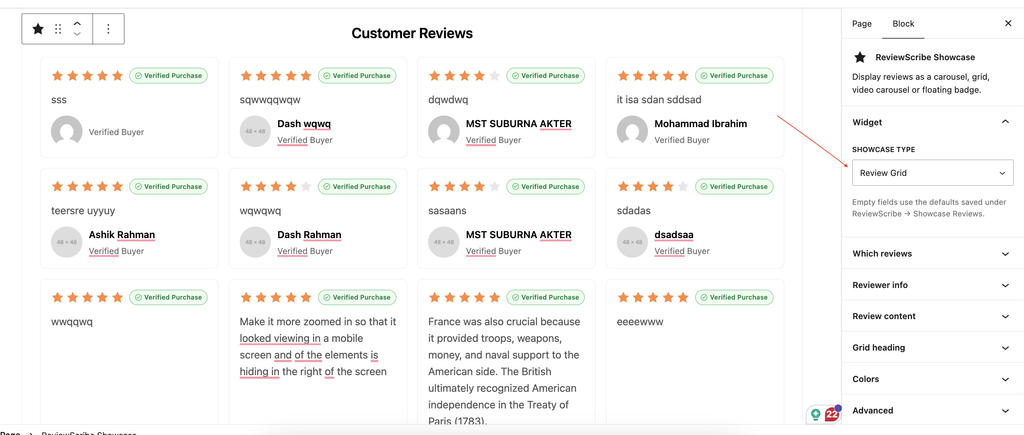
For a standard customer review section, select Review Grid.
Step 4: Configure review display settings #
Use the block settings in the right sidebar to customize your showcase.
The available settings may include:
- Which Reviews: Configure which reviews should appear.
- Reviewer Info: Control the reviewer information displayed.
- Review Content: Configure the presentation of review text.
- Grid Heading: Customize the grid title and subtitle.
- Colors: Adjust supported colors.
- Advanced: Configure additional supported settings.
For example, set the grid heading to “Customer Reviews” and choose the review information you want visitors to see.
Step 5: Preview and publish #
- Preview the page to verify the layout.
- Adjust the block settings as needed.
- Click Publish or Update.
- Visit the published page to confirm the showcase displays correctly.