
The ReviewScribe Settings page allows you to configure the core functionality of your review management system. From managing your license and defining review rating thresholds to connecting AI providers, enabling spam protection, and configuring SEO structured data, you can manage everything from one central location.
To access the settings:
- Log in to your WordPress dashboard.
- Navigate to ReviewScribe → Settings.
- Expand the settings section you want to configure.
1. License #
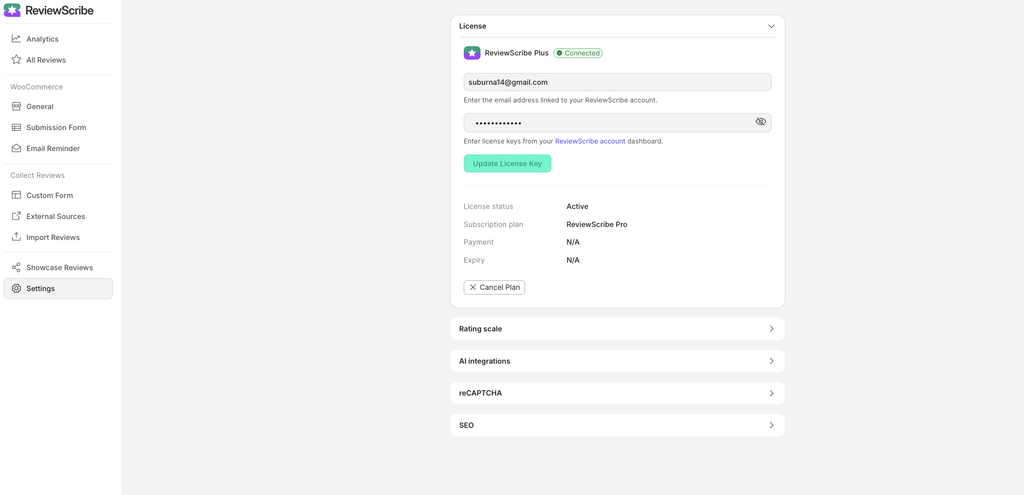
The License section provides access to your ReviewScribe license settings.
Expand this section to access the available license management options for your plugin installation.
Refer to your license information when configuring or managing your ReviewScribe Pro features.
2. Rating Scale #
The Rating Scale setting defines what counts as a positive or negative review across ReviewScribe.
These thresholds are used by:
- Analytics sentiment reporting.
- Email Reminder rating redirects.
You can configure separate thresholds for positive and negative reviews.
Positive Reviews #
Define the minimum star rating that qualifies as a positive review.
Default setting: 4 stars and above.
Negative Reviews #
Define the maximum star rating that qualifies as a negative review.
Default setting: 2 stars and below.
Example Configuration #
| Rating | Classification |
|---|---|
| 5 stars | Positive |
| 4 stars | Positive |
| 3 stars | Neither positive nor negative |
| 2 stars | Negative |
| 1 star | Negative |
You can change these thresholds using the dropdown menus to match your review management preferences.
Note: These settings affect ReviewScribe’s internal sentiment classification and Email Reminder rating redirects.
3. AI Integrations #
ReviewScribe supports AI integrations to help generate review summaries and insights.
You can connect one AI provider at a time.
Available AI providers:
- OpenAI
- Claude
- Gemini
Important: Only one AI provider can be active at a time. Connecting a new provider replaces the current connection.
3.1 OpenAI Integration #
To connect OpenAI:
- Open ReviewScribe → Settings.
- Expand the AI Integrations section.
- Select the OpenAI tab.
- Visit the OpenAI Platform.
- Log in to your OpenAI account.
- Generate a new secret API key.
- Copy the API key.
- Return to ReviewScribe.
- Paste the key into the Enter OpenAI API key field.
- Click Connect.
Once connected, ReviewScribe can use OpenAI for supported AI features, including review summaries and insights.
3.2 Claude Integration #
To connect Claude:
- Expand the AI Integrations section.
- Select the Claude tab.
- Visit the Anthropic Console.
- Generate an API key from your Anthropic account.
- Copy the API key.
- Paste it into the corresponding API key field in ReviewScribe.
- Click Connect.
3.3 Gemini Integration #
To connect Google Gemini:
- Expand the AI Integrations section.
- Select the Gemini tab.
- Visit Google AI Studio.
- Generate an API key.
- Copy the generated key.
- Paste it into the corresponding API key field in ReviewScribe.
- Click Connect.
Important: You need a valid API key from your selected AI provider. API usage may be subject to the provider’s pricing, quotas, and usage policies.
4. reCAPTCHA #
ReviewScribe supports Google reCAPTCHA to help protect your website’s review submission forms against spam and automated submissions.
You can choose from three supported reCAPTCHA versions:
- reCAPTCHA v3: Protects forms using a risk score without requiring users to complete a checkbox.
- reCAPTCHA v2 (Checkbox): Displays an interactive checkbox for users to confirm they are human.
- reCAPTCHA v2 (Invisible): Runs an invisible verification process when users interact with the protected form.
How to Configure reCAPTCHA #
Follow these steps to enable reCAPTCHA:
- Open ReviewScribe → Settings.
- Expand the reCAPTCHA section.
- Visit the Google reCAPTCHA website.
- Sign in using your Google account.
- Register your website and select the reCAPTCHA version you want to use.
- Enter your website domain.
- Generate your reCAPTCHA site key and secret key.
- Return to the ReviewScribe settings page.
- Select the matching reCAPTCHA version.
- Enter the Site Key.
- Enter the Secret Key.
- Click Connect.
Once connected, reCAPTCHA can help protect supported review submission forms from spam and abuse.
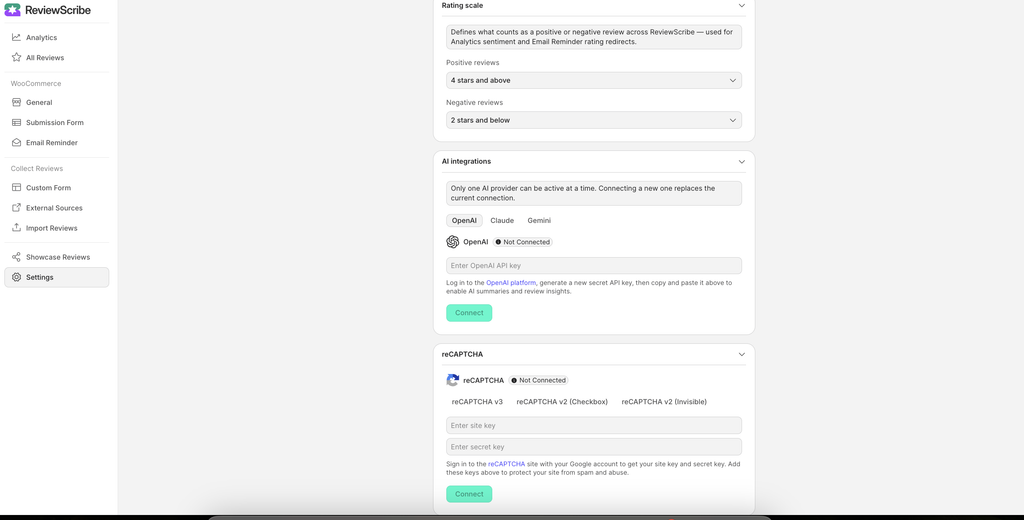
Important: Make sure the selected reCAPTCHA version matches the keys generated in your Google reCAPTCHA account.
5. SEO Settings #
ReviewScribe includes Google Review Schema support to help search engines understand your product review information.
Google Review Schema #
Enable the Google Review Schema option to add Review and AggregateRating structured data (JSON-LD) to product pages.
This structured data helps search engines understand your product ratings and reviews.
When enabled, approved reviews can contribute to the structured data used to make eligible product pages candidates for star-rating rich results in Google Search.
How to Enable Google Review Schema #
- Navigate to ReviewScribe → Settings.
- Expand the SEO section.
- Locate Google Review Schema.
- Enable the checkbox.
- Save or apply the setting if prompted.
Once enabled, ReviewScribe adds the supported structured data to product pages.
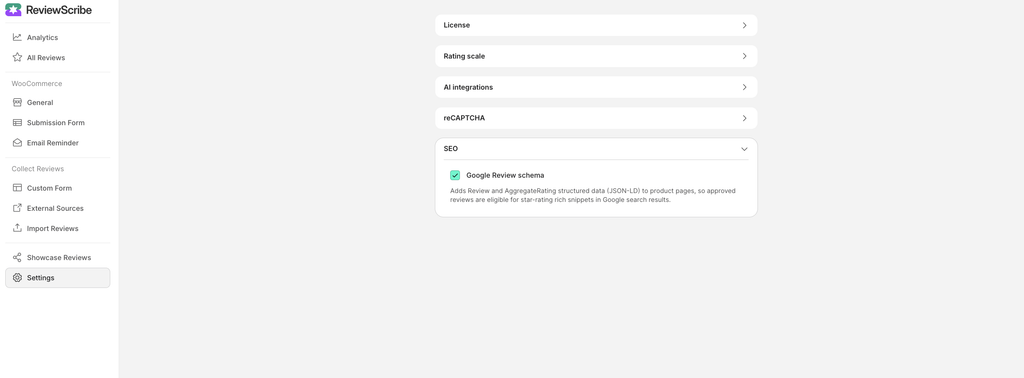
Note: Enabling structured data does not guarantee that Google will display star ratings in search results. Google determines rich result eligibility and display based on its own guidelines and policies.
6. Recommended Settings #
For a typical WooCommerce store, the following configuration is a good starting point:
| Setting | Recommended configuration |
|---|---|
| Positive Reviews | 4 stars and above |
| Negative Reviews | 2 stars and below |
| AI Integration | Connect your preferred AI provider |
| reCAPTCHA | Enable a suitable version |
| Google Review Schema | Enabled |
Adjust these settings according to your store’s requirements.
7. Troubleshooting #
AI Integration Is Not Connecting #
- Verify that your API key is correct.
- Check whether your API account has access and sufficient quota.
- Make sure you are using a valid key from the selected provider.
- Check your hosting server’s outbound API connectivity.
reCAPTCHA Is Not Working #
- Verify that the site key and secret key are correct.
- Confirm that the selected version matches your Google reCAPTCHA configuration.
- Check that your website domain is registered in the Google reCAPTCHA console.
- Ensure the keys belong to the correct domain.
Google Review Schema Is Not Appearing #
- Make sure Google Review Schema is enabled.
- Check the source code of your WooCommerce product page for JSON-LD structured data.
- Verify the structured data using Google’s Rich Results Test.
- Check for conflicts with other SEO or schema plugins.
8. Need More Help? #
For more information about ReviewScribe, visit:
- Plugin: https://wordpress.org/plugins/reviewscribe/
- Official Website: https://reviewscribe.com/
Configure ReviewScribe to manage customer feedback, automate review workflows, gain AI-powered insights, and improve your WooCommerce review management experience.